
How To Use Stream Deck Well
Learn how to set up Stream Deck with simple profiles, role-based pages, and state-aware actions instead of creating a cluttered wall of buttons.
By Arise Create
- Start with one workflow
- Design by context
- Keep visible states clear
Start with one repeated workflow
The best first Stream Deck setup is not twenty actions. It is one workflow you already repeat several times per day. Good candidates are meeting controls, opening a project workspace, switching audio devices, or launching a publishing sequence.
If a task happens often and always follows the same sequence, it deserves a dedicated button before anything else.
Use a walkthrough as orientation, not as the layout itself
A beginner walkthrough can help you understand the software, the first profile, and the basic interaction model. The linked video by Nicco Hagedorn is useful in that role because it frames Stream Deck as a practical efficiency tool rather than a novelty accessory.
The important part is what happens after the walkthrough. Your first useful layout should still be built around your own repeated work: meetings, browser context switching, recording, note capture, or a specific operational routine.
- Use the video to get oriented quickly.
- Use the article to decide which actions deserve the top layer.
- Use your own daily workflow as the final filter for what stays on the deck.
Organize by role, not by app
Most weak Stream Deck setups are arranged by software name. Stronger ones are arranged by situation: meeting, edit, admin, publish, respond, review. Context-based layouts are easier to scan because they match the user intent at that moment.
- Create a meeting profile with mute, camera, share, notes, and follow-up actions together.
- Create a focus-work profile for launching projects, timers, task lists, and context restoration.
- Create a publishing profile for scenes, exports, uploads, descriptions, and announcement tasks.
Use Smart Profiles for context handoff
Manual profile switching is acceptable at the beginning, but it becomes friction once the deck is embedded in daily work. Smart Profiles matter because they let Stream Deck change layouts when the active app or window context changes.
The linked Smart Profiles video is useful when you already know which contexts deserve their own layouts, but you no longer want to manage those transitions manually. Used well, Smart Profiles reduce one more layer of interface handling without hiding the logic of the setup.
- Use Smart Profiles for strong context boundaries such as meetings, browser work, editing, or communication.
- Do not automate every minor state change; automate only the contexts that are stable enough to deserve their own layout.
- Keep the target profile clear and readable so the automatic handoff still feels predictable.
Use visual hierarchy intentionally
Not every action deserves the same prominence. Put the highest-frequency or highest-risk actions where your hand expects them. Group similar actions visually and keep labels blunt and literal.
If an action changes state, the key should communicate that state clearly. Stream Deck becomes much more useful when the deck mirrors reality instead of acting like a static shortcut board.
Add complexity only after the basics work
Multi-actions, conditional workflows, and plugin automations are useful, but they become confusing if the base layout is unclear. Start with reliable one-press actions, then add automation only where it removes friction without hiding important steps.
Real product examples
Companion walkthrough
Watch video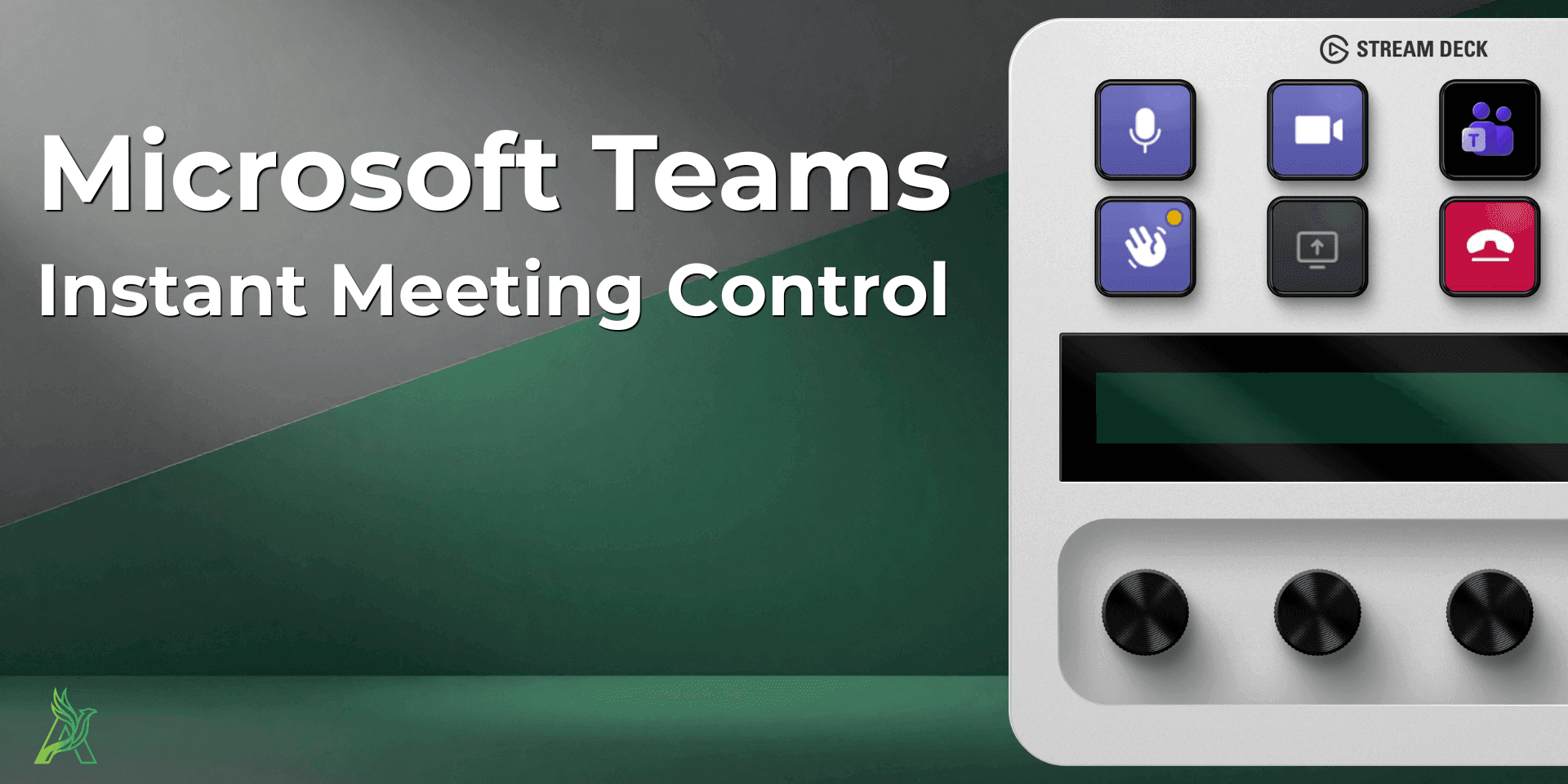
Watch Nicco Hagedorn's getting-started walkthrough alongside this article.
The YouTube video 'How to get started with Stream Deck | increase your efficiency today' is a useful companion resource if you want a beginner-oriented walkthrough while you build your first layout.
How to use it with this guide
Use the video for a fast orientation on what Stream Deck is and how a first setup feels.
Apply the article's advice while mapping your first real workflow instead of copying random actions.
Return to the guide after setup and simplify the layout until only high-value actions remain.
Context automation walkthrough
Watch video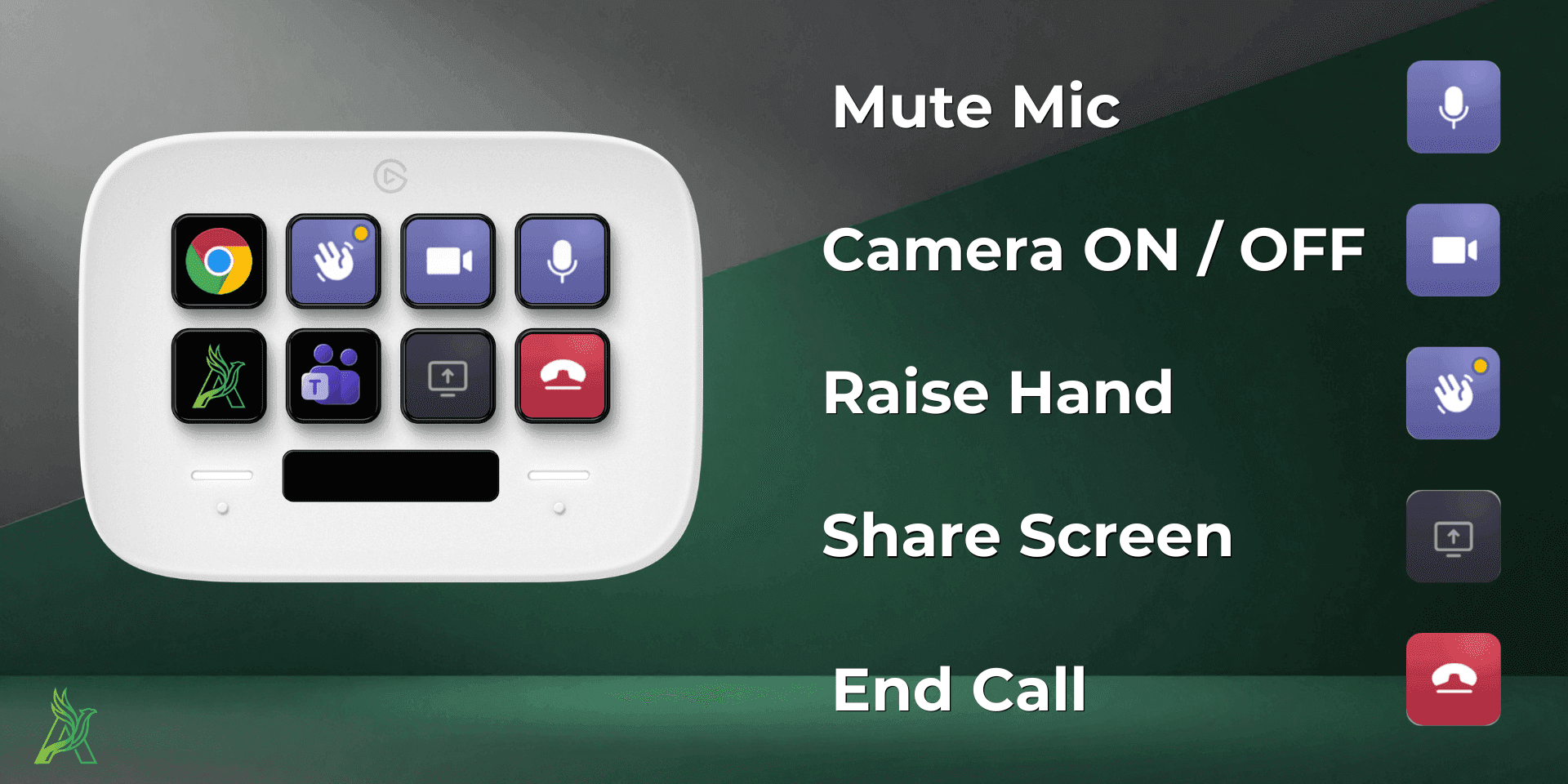
Use Nicco Hagedorn's Smart Profiles video when you want the deck to follow your app context automatically.
The YouTube video 'How to setup a smart Stream Deck with Smart Profiles' is a useful companion resource when the next step is not more buttons, but better automatic profile switching.
How to use it with this guide
Use the video to understand how Stream Deck can react to the app you are currently using.
Pick only the contexts that genuinely deserve automatic switching, such as meetings, editing, or admin work.
Remove manual switching steps when Smart Profiles can hand off to the right layout more reliably.
Profile routing example
View product
ChromeShift is a good example of starting with one repeated context switch.
Instead of mapping dozens of browser shortcuts, ChromeShift focuses on one repeated decision: which profile or workspace should open right now.
A clean first workflow
Assign a profile and optional target URL to one key.
Launch the right browser context with a single tactile action.
Receive immediate feedback that the context switch executed.
Output mode example
View product
Speech to Text shows how one action can stay simple while still serving multiple outcomes.
The product page uses one core recording action but clearly separates output modes so users can choose clipboard, paste, or send without cluttering the whole deck.
A good usage pattern
Keep one obvious entry action on the deck.
Let the key show the recording and processing stages clearly.
Match the final output mode to the actual workflow destination.
Browse products
A practical starting guide for building Stream Deck layouts that stay understandable, fast, and worth using every day.