
Arise Flashback
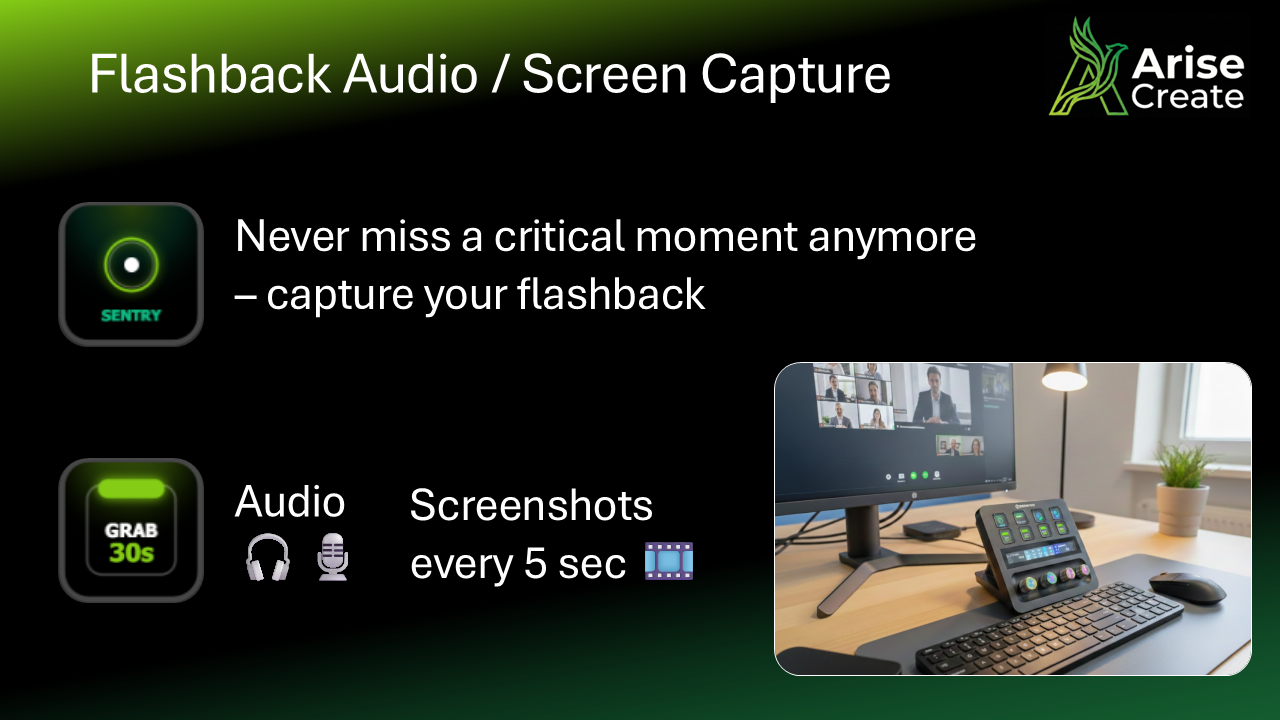
Arise Flashback keeps a rolling buffer of your screen and audio in memory. One key press exports the last 10–90 seconds into a self-contained local HTML report. Nothing is stored until you capture, and nothing leaves your machine.
- Rolling capture buffer
- Self-contained local HTML report
- Zero idle CPU with Sentry off
What it does
Arise Flashback runs a silent rolling buffer on your machine that holds a recent window of your screen and audio in memory. When a key moment happens (an insight during a meeting, a decision made verbally, an unexpected result), you press Capture and the buffer is written to a self-contained HTML report saved to your machine.
Everything stays local. No data is transmitted anywhere. Audio and screen content remain in memory only until you capture, and the resulting HTML report opens in any browser with no extra software.
The three actions
- Sentry: arms or disarms the capture engine. When Sentry is off the plugin uses zero CPU; the buffer is not running. Arm Sentry whenever you are in a situation where a capture might be needed.
- Capture: exports the rolling buffer into a local HTML report and copies the file path to your clipboard. Sentry must be armed for this to work.
- Session: opens your capture dashboard: a list of all reports from the current session so you can review or open any of them.
How the capture works
When Sentry is armed, the plugin holds a configurable window of recent screen and audio data in RAM, from roughly 10 to 90 seconds depending on your settings.
When you press Capture, that window is assembled into a standalone HTML file with embedded media and saved to your machine. The file is portable and opens in any browser without needing any additional software or internet access.
Setup
- Install Arise Flashback from the Elgato Marketplace.
- Drag all three actions (Sentry, Capture, and Session) onto Stream Deck keys.
- Grant screen capture and microphone permissions when Windows prompts you.
- Press Sentry to arm the buffer before any session where a capture might be useful.
- Press Capture when you want to archive the last window of your context.
- Press Session to review everything captured in the current session.
Requirements
- Windows
- Microphone (for audio capture in reports)
- Screen recording permission (Windows Settings → Privacy → Screen recordings)
- Elgato Stream Deck hardware
- Stream Deck software
Troubleshooting
- Sentry doesn't arm: Check that Windows screen capture and microphone permissions are granted for Stream Deck in Windows Settings → Privacy.
- Capture produces an empty or incomplete report: Sentry must be armed before pressing Capture. Arm Sentry and wait a few seconds for the buffer to start filling, then try Capture again.
- Report is not on the desktop: Check Windows notification area for a blocked save dialog. The report may also have been saved to your Documents folder.
- Audio is missing from the report: Verify microphone access in Windows Settings → Privacy & Security → Microphone.
- Screen content is missing from the report: Verify screen recording access in Windows Settings → Privacy & Security → Screen recordings.
Browse products
Setup guide and troubleshooting for Arise Flashback, a Stream Deck plugin that captures the last moments of screen and audio into a portable local report.