Arise Python Commander
Arise Python Commander turns any Python script into a Stream Deck control that reports back. Five actions cover one-shot runs, output-to-image mapping, timed loops, live streaming to a key or the Neo info bar, and keys the script paints itself. For Stream Script, the property inspector can write the whole prompt for your AI agent.
By Arise Create
- Five actions, one plugin
- Live on keys and the Neo info bar
- An agent can write the script
What it does
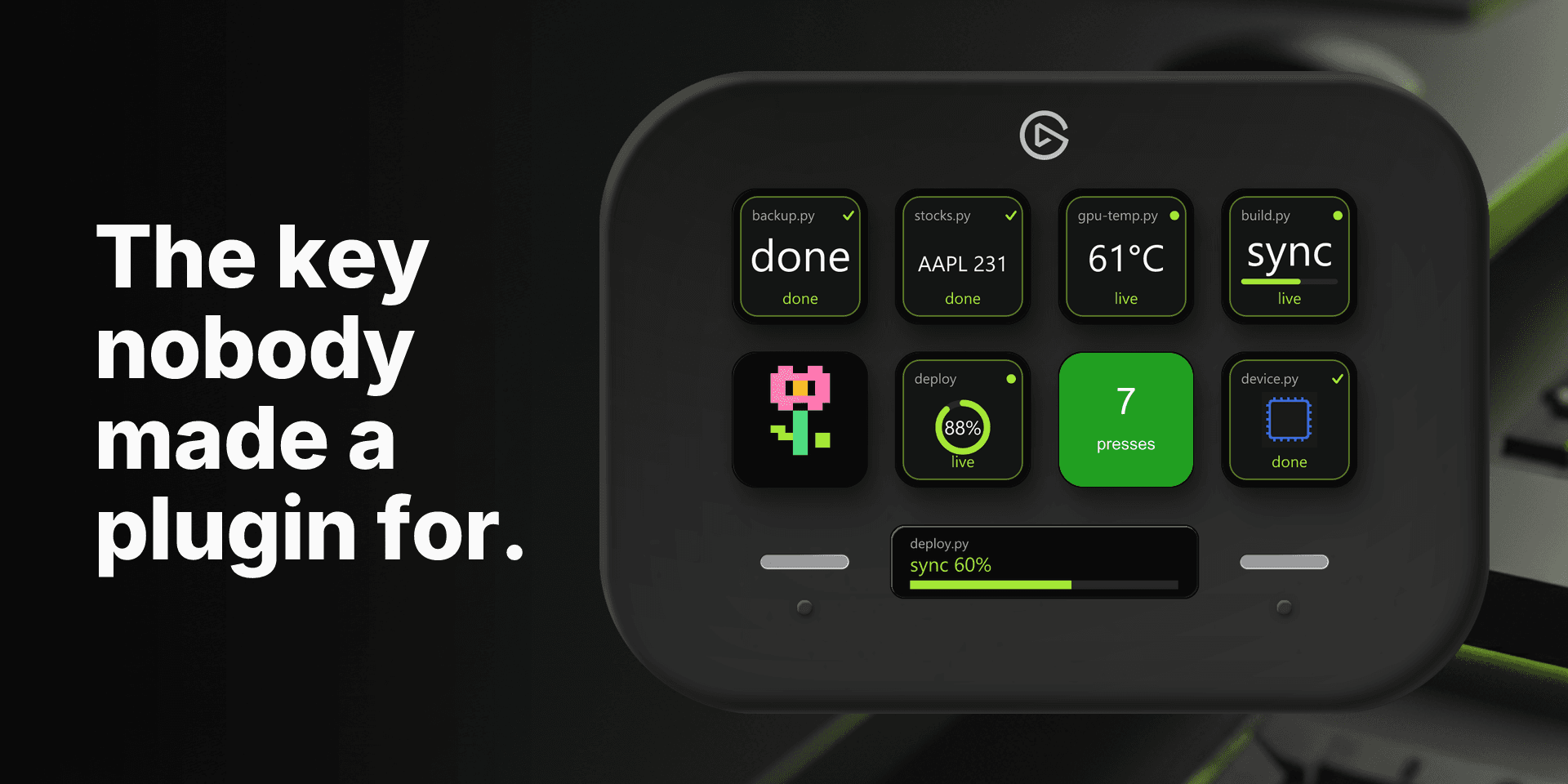
Arise Python Commander is the plugin for everything no other plugin covers. Instead of one fixed feature, you give a key a Python script, and the key shows what the script prints: a value, a progress bar, an image you mapped to an output, or a frame the script drew itself. Every key uses the same visual language, so a script's name, its latest value and its state (ready, live, done, warning, error, stopped) read the same across the whole deck.
The state is inferred from what the script prints. A line containing words like "error" or "failed" turns the key red, "warning" turns it amber, and a finished progress bar reads as done, so a script never has to know anything about Stream Deck to give useful feedback.
The five actions
Pick the action by what your script does.
- Run PY-Script: runs a Python file once per key press and shows the result on the key. Up to two output values can be mapped to your own images, so "true" or "false" can swap the whole key face.
- Multi State PY-Script: like Run PY-Script, but maps up to five exact output values to five images. Print one of the mapped values and the key switches to it. Built for status dashboards and toggles.
- Loop Script: runs a Python file on a schedule you pick in the inspector, from every few seconds to a custom interval, and refreshes the key after every run. Built for polling, health checks, timestamps and live readouts.
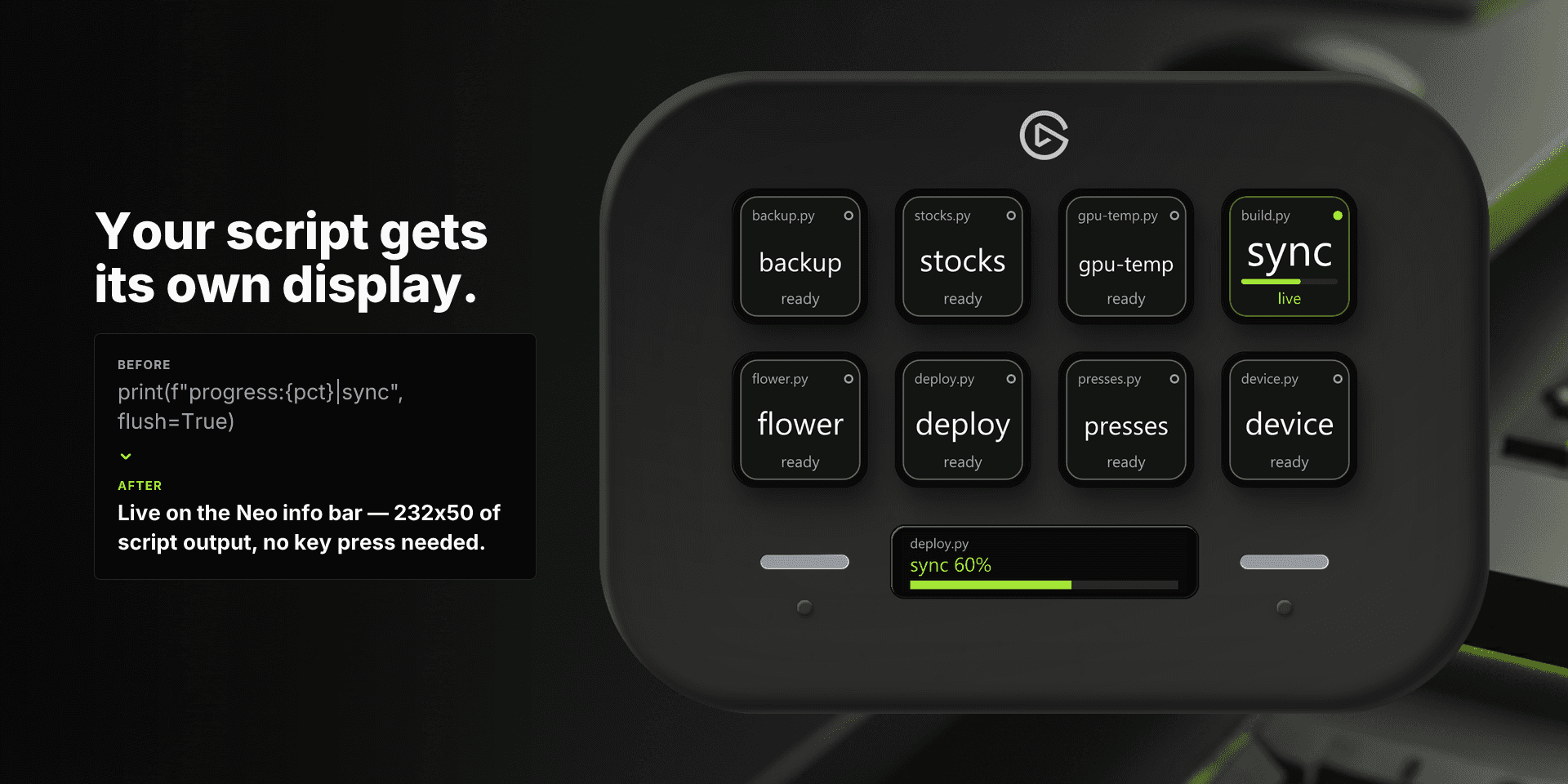
- Stream Script: starts a long-running script and shows every line it prints, live, as it prints it. Progress lines render as a bar or a gauge. This action also runs on a Stream Deck Neo's info bar, and it is the one an AI agent can write for you.
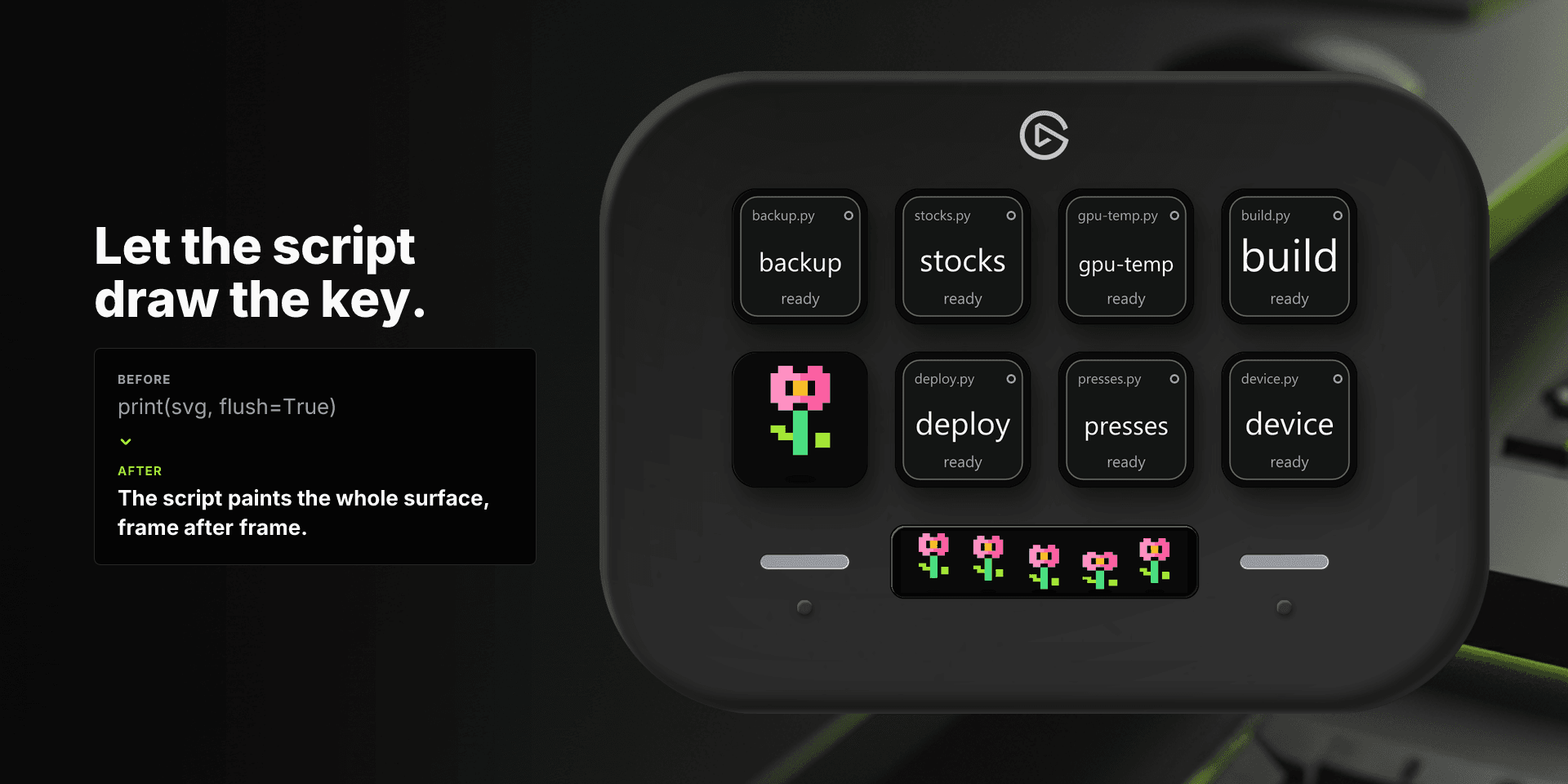
- Script Canvas: runs a persistent script that paints the key with its own images, one frame per printed line, and tells the script when the key is pressed. Built for anything a fixed layout cannot show.
Setup
- 1Install Arise Python Commander from the Elgato Marketplace. It needs Stream Deck 7.6 or later.
- 2Drag an action onto a key. Stream Script can also be dropped onto a Stream Deck Neo's info bar.
- 3In the property inspector, enter the full path to your script under "Path to Script" (for example C:\Users\you\scripts\status.py). Stream Script and Script Canvas also accept the script text pasted inline, so no file is needed.
- 4Optionally map outputs to images: up to five values for Multi State PY-Script, two for Run PY-Script and Loop Script, using the "Match value" and "Image for value" fields.
- 5For Loop Script, choose a schedule or enter custom seconds.
- 6Press the key. A Stream Script on the info bar starts on its own as soon as it is visible.
Python, interpreters and virtual environments
These settings live on each action under "Advanced runtime options", not in a global setting, so different keys can run under different Python environments.
- Python interpreter: "Auto detect" tries python, python3 and py in turn. Pick one explicitly, or choose "Custom path" and enter the full path to an executable.
- Use virtual environment: tick it and enter the path to the environment's folder (for example C:\project\.venv). The plugin runs the script with that environment's interpreter, so its installed packages are available.
- Third-party modules are only available if they are installed for the interpreter the action uses. "No module named ..." almost always means the wrong interpreter or a missing virtual environment on that key.
Stream Script: what your script prints
A Stream Script keeps running and prints one line whenever the key should change. The plugin re-renders after every complete line, so the contract is short but strict.
- Always flush: print("...", flush=True). Python buffers output when it is not writing to a terminal, so without flushing no line ever reaches the plugin and the key stays blank.
- One update per line, and keep it short. A key shows a few words; the Neo info bar shows one line.
- Keep running. If the script exits on its own, the key shows "done" (no output) or "ended" (had output); on a key, a press starts it again.
- Keep stderr clean. Anything written to stderr puts the key into the error state, so send diagnostics to a log file instead.
- Plain text becomes the key's value: ok, 23.5 degrees, 3 new.
- Progress lines drive a bar: progress:42|Downloading, progress=42, or 75% | Uploading. The percentage is clamped to 0-100 and the label is shown next to it.
- A line that exactly matches Match value 1 or 2 swaps in the mapped image.
- A line that is an image, a data:image/... URI, raw <svg> markup, or JSON like {"image": "..."}, paints the whole surface edge to edge: 144x144 on a key, 232x50 on the Neo info bar.
- Hints go in front of the payload, each ending in a semicolon: layout=radial; picks a layout for that update when the Display layout is Auto detect, and color=#ff8800; or color=orange; recolours that update. On the info bar a gradient like color=0:#ff0000,1:#0000ff; fills the bar.
Display layouts
The Display layout setting decides how a progress line is drawn. Auto detect follows layout= hints in the output; the others force one look.
- Text only: the value as plain text, even for progress lines.
- Progress bar: a full-width bar under the value.
- Compact bar: a slimmer bar that leaves room for the label.
- Radial: a ring around the percentage.
- Bar + mapped final icon: a bar while it runs, then your mapped image once it reaches 100%.
The Stream Deck Neo info bar
The Neo's info bar is a 232x50 strip that cannot be pressed, so a Stream Script placed there starts on its own as soon as it is configured and visible, restarts whenever its settings change, and stops when it leaves the screen. Progress lines drive the strip's bar; every other line is shown as the strip's value; an image line must be exactly 232x50 to fill it.
Because the strip has no press to retry with, it fails silently: a script that does not print correctly shows nothing at all. Run a new script in a terminal first and confirm it prints one line at a time.
Script Canvas: paint the key yourself
A Script Canvas script owns the whole key. Every line it prints is a frame: a data:image/... URI, raw <svg> markup, or JSON like {"image": "...", "title": "..."}. An SVG needs an explicit width and height; if it only has a viewBox, the plugin fills them in, defaulting to 144x144.
Presses are handed to the script as newline-delimited JSON on its standard input, as {"event": "keyDown"}, so a canvas can react instead of only animating. Reading them is optional; stdin blocks, so read it on a background thread and keep printing frames from the main loop.
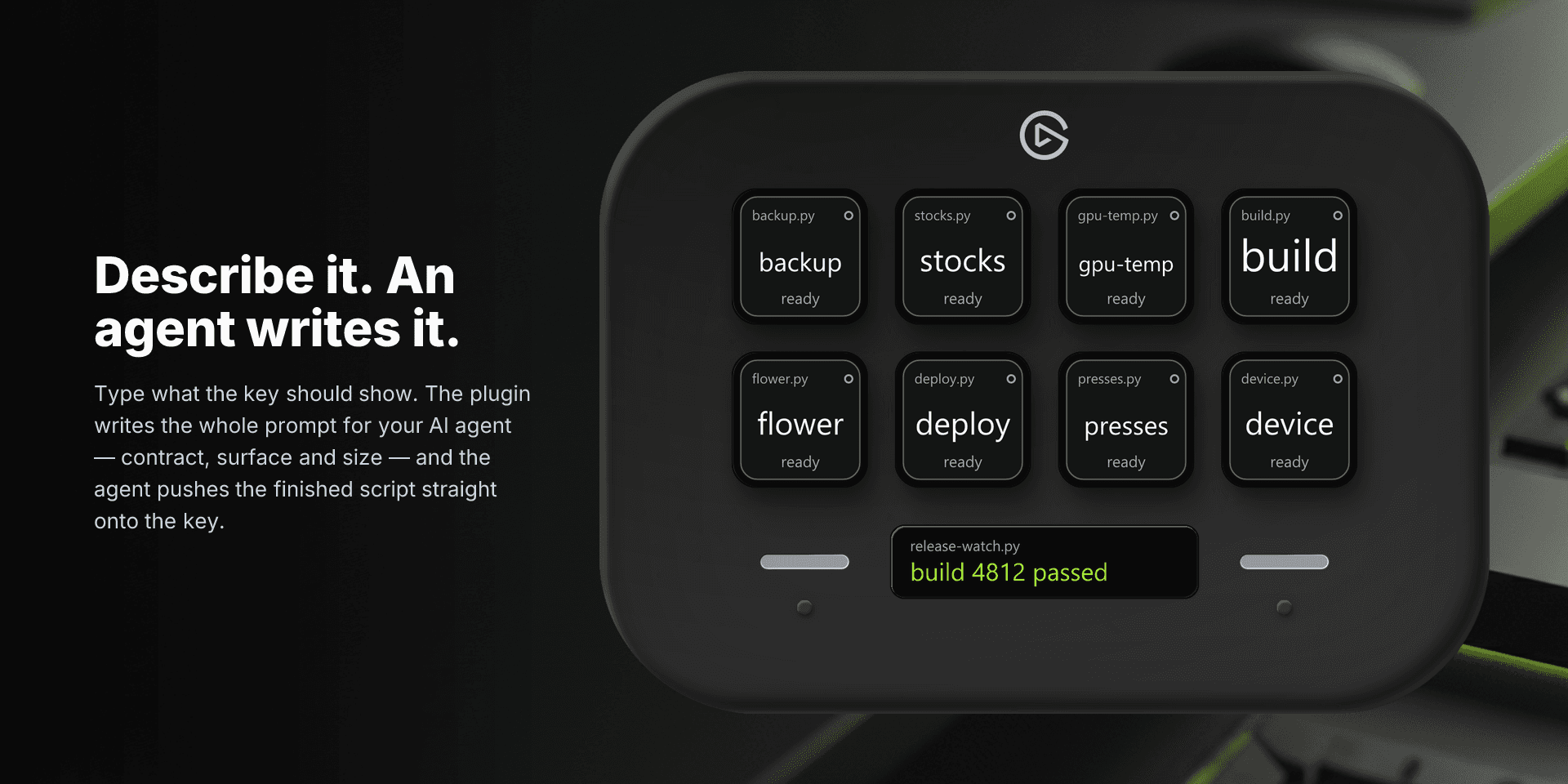
Let an AI agent write the script
For Stream Script you do not have to write anything. The action's property inspector has a section called "Ask an AI agent to build this" that turns a sentence into a complete prompt for whichever agent you use, and gives the agent a way to deliver the finished script straight onto the key.
- 1Open the Stream Script action's settings and expand "Ask an AI agent to build this".
- 2Under Description, type what the key should show, for example "the temperature outside, blue when it's below freezing".
- 3The Prompt field fills itself: the script contract, the exact surface the key is on and its pixel size, and the delivery steps. It never contains your push token, so it is safe to paste anywhere.
- 4Press Copy prompt and paste it into your agent.
- 5The agent writes the script, checks that it prints correctly, and delivers it to this key over a local link that only a process on your own machine can authorise. The script is stored on the key itself, so it keeps working after the agent's temporary file is gone.
Requirements
- Stream Deck 7.6 or later
- Windows 10 or later, or macOS 13 or later
- Python 3 installed and on the system PATH, or reachable at a custom interpreter path
- Any Stream Deck with keys; the info bar needs a Stream Deck Neo
Troubleshooting
- The key never updates or stays blank: the script is not flushing. Add flush=True to every print, or call sys.stdout.flush() after it.
- The key shows an error although the script works: something was written to stderr, even a harmless warning. Send diagnostics to a file instead.
- A mapped image never appears: the printed value must match the Match value exactly, including capitalisation and without extra whitespace.
- A Stream Script shows "done" or "ended" right away: the script exited. It has to keep running, usually in a loop with a short sleep.
- An inline script cannot find its files or imports: inline scripts run from a temporary file, so relative paths, sibling modules and __file__ do not resolve. Use absolute paths, or point the action at a script file instead.
- Wrong Python version, or "No module named ...": set the interpreter or the virtual environment on that action under Advanced runtime options.
- A progress bar does not appear: the line has to look like progress:42|label or 42% | label, and the Display layout must not be Text only.
- The Neo info bar shows nothing: the strip fails silently. Run the script in a terminal and confirm it prints; if it prints image frames, make them exactly 232x50.
Browse products
Setup guide, action reference and troubleshooting for Arise Python Commander: put any Python script on a Stream Deck key or a Stream Deck Neo info bar with live output, or let an AI agent write the script for you.