
Project Management Prompts
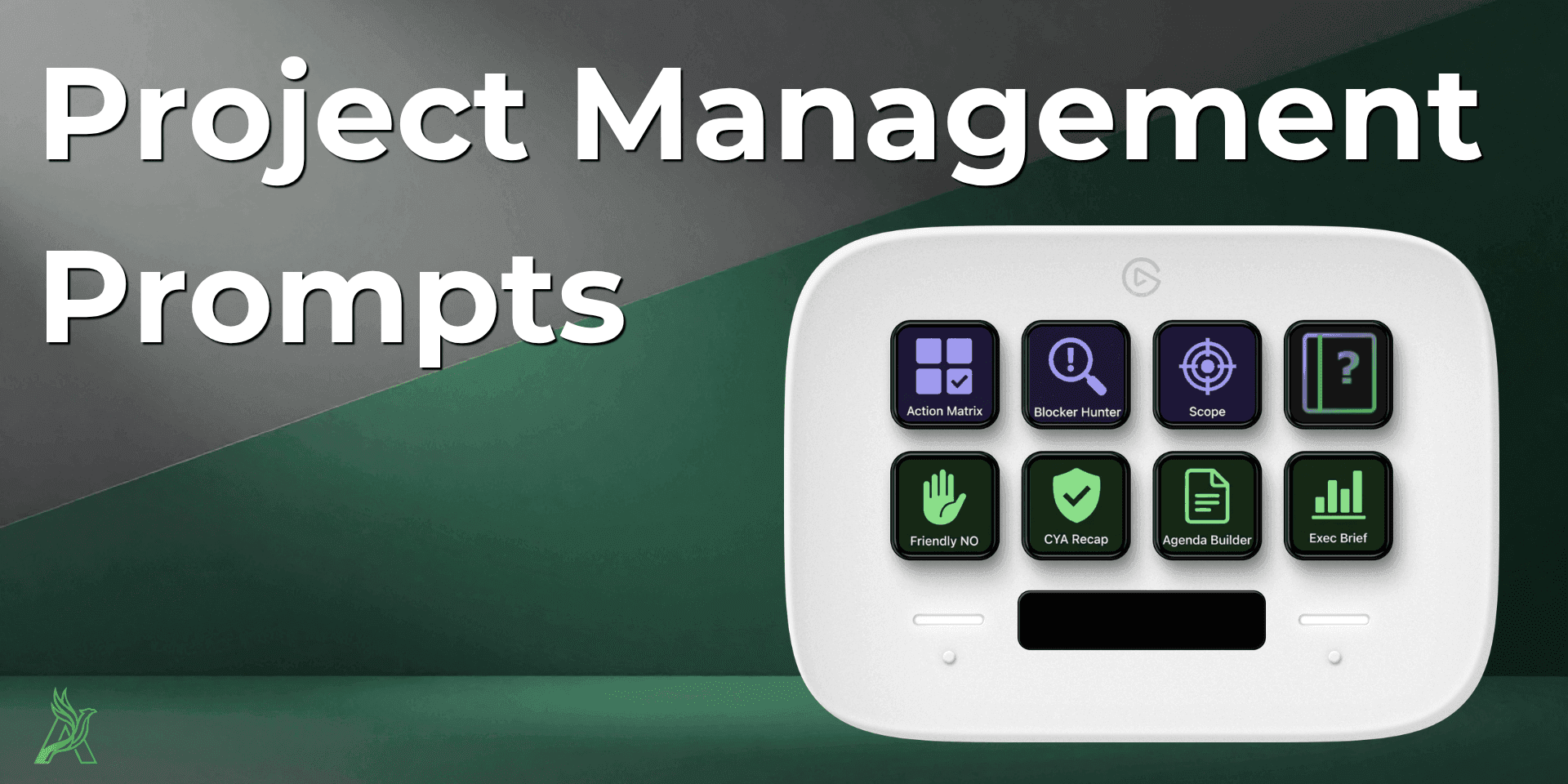
Project Management Prompts is a Stream Deck SD Profile with seven one-tap AI prompt templates. Press a key to paste the prompt into any AI chat interface (Copilot, Claude, ChatGPT, or others) and get structured output without composing prompts from scratch.
By Arise Create
- Seven PM prompt templates
- Works with any AI chat interface
- Instant import, no plugin install required
What it is
Project Management Prompts is a Stream Deck SD Profile, not a plugin. An SD Profile is a ready-to-use layout imported directly into Stream Deck. No installation from the Marketplace app is required. After import it appears as a selectable layout in your Stream Deck software.
Each key in the profile holds a complete AI prompt template for a specific project management situation. Press a key while your AI chat input field is focused and the template is pasted in automatically, ready for you to add your context.
The seven prompts
- Action Matrix: converts disorganized meeting notes into a clean, structured task table.
- Blocker Hunter: strips vague status updates down to the actual impediments blocking progress.
- Scope Patrol: flags when an incoming request is quietly expanding your project scope.
- CYA Recap: turns a verbal agreement or decision into a clear written record.
- Exec Brief: compresses a long thread or an escalation into a 100-word summary for leadership.
- Friendly NO: drafts a firm but professional response to an unrealistic deadline.
- Agenda Builder: converts a disorganized text thread into a structured meeting agenda.
How to use it
Each prompt pastes a template into your AI chat input. You add your project context (meeting notes, a message thread, a request) and send to the AI.
- Open your AI chat interface (Copilot, Claude, ChatGPT, Gemini, or any other).
- Click inside the message input field so it has keyboard focus.
- Press the relevant key on your Stream Deck.
- Add your project context directly after the template text.
- Send the message to the AI.
Setup
- Download the profile file from the Elgato Marketplace product page.
- Double-click the downloaded .streamDeckProfile file. Stream Deck will confirm the install and ask which connected device to install it on.
- The profile will appear in your profile list. Switch to it when you need the PM prompt keys.
Requirements
- Elgato Stream Deck hardware (any model with at least 7 keys)
- Stream Deck software
- Any AI chat interface accessible in a browser or desktop app
- Windows or macOS
Tips
- Focus the AI input before pressing: the key types into whichever input field is active, so click inside the chat box first.
- Add context after the prompt fires: the templates work best when you follow them immediately with your meeting notes, thread, or request text.
- Keep the profile on a dedicated page: use a Smart Profile or a separate page that activates when your AI app is in focus.
Customizing prompts
Each prompt template can be edited to match your team's language, tone, or specific project context.
- Open the Stream Deck app and switch to the Project Management Prompts profile.
- Double-click the key you want to edit. The key settings panel opens on the right.
- Edit the text in the action's text field. The key will paste your updated text on the next press.
- To restore the original prompt, download a fresh copy of the profile from the Elgato Marketplace and re-import it.
Browse products
Setup guide and usage reference for Project Management Prompts, a Stream Deck profile with seven ready-made AI prompt templates designed for project managers.