
Speech to Text
Speech to Text runs OpenAI Whisper entirely on your machine with no cloud connection. Tap to record, tap to stop, and your words land in the clipboard, the active window, or an AI chat. Your audio never leaves your computer. Earlier pages on this website called this plugin Arise Speech to Text. Speech to Text is also known as Local AI Transcribe.
By Arise Create
- 100% local, no cloud
- Four model sizes
- Three output modes
What it does
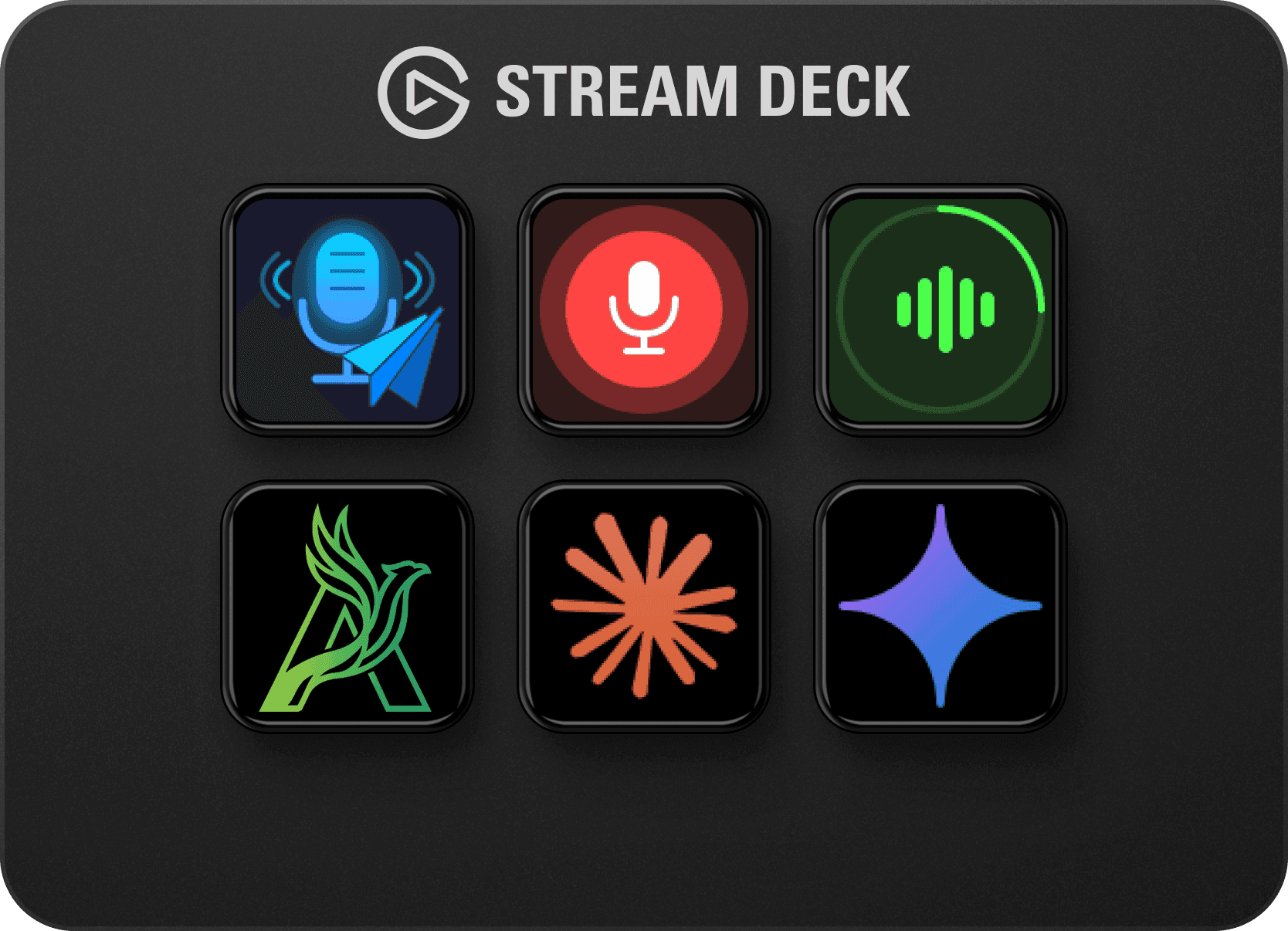
Speech to Text adds a push-to-dictate key to your Stream Deck. Press once to start recording, press again to stop. The plugin runs OpenAI Whisper locally on your machine to transcribe your words, then delivers the text where you need it.
Your audio is processed entirely on your computer. Nothing is sent to any server, and no internet connection is needed after the initial model download.
The plugin supports over 57 languages including German, French, Spanish, and Japanese. Whisper detects the spoken language automatically. No manual language selection is required.
Model sizes
Four Whisper model sizes are available. Smaller models are faster but less accurate. Larger models are more accurate but take longer to process and use more memory.
- Tiny: fastest, lowest accuracy, minimal RAM usage. Good for quick notes and short phrases in a quiet environment.
- Base: slightly more accurate than Tiny with similar speed. A good starting point for most users.
- Small: noticeably more accurate with moderate speed. Recommended for most daily use.
- Medium: highest accuracy, slowest processing, highest RAM requirement. Best for technical vocabulary, multilingual content, or challenging audio. If your machine has a CUDA-capable Nvidia GPU, processing time for Medium is dramatically reduced, often faster than Small on CPU-only hardware.
Output modes
Choose how the transcribed text is delivered after each recording in the key settings.
- Clipboard only: text is copied to your clipboard. Paste it manually wherever you need it.
- Auto-paste: text is pasted directly into whichever window was active when you pressed the key. Make sure the target window is focused before pressing.
- Auto-send: text is pasted and Enter is pressed automatically. Useful for AI chat inputs, messaging apps, and search fields.
Key states
The key icon updates throughout the workflow so you always know what the plugin is doing.
- Idle: ready to record. Press to begin.
- Recording: microphone is active and capturing. Press again to stop and transcribe.
- Processing: Whisper is converting your audio. Wait for this to complete before pressing again.
- Done: text has been delivered to the configured output. Key returns to idle.
First-time setup
A one-time model download is required before the plugin can transcribe. This happens automatically on first use and requires an internet connection.
- Install Speech to Text from the Elgato Marketplace.
- Drag the action onto a key and open the key settings.
- Select a model size. Tiny or Base are fastest to download. Small is recommended for accuracy.
- Press the key once. The plugin will download the selected model automatically. This may take a few minutes depending on your connection.
- Once the download completes, the key is ready. Future use requires no internet connection.
Requirements
- Windows
- Elgato Stream Deck hardware
- Stream Deck software
- Microphone connected and allowed in Windows (Settings → Privacy → Microphone)
- Internet connection for the initial model download only
Troubleshooting
- Model download fails or stalls: A stable internet connection is required. Check that your firewall or security software is not blocking Stream Deck. Try selecting a smaller model (Tiny or Base) if downloads keep timing out.
- Text doesn't appear after recording: Check the output mode in the key settings. If using Auto-paste, confirm that the target window was focused before pressing the key.
- Transcription is inaccurate: Switch to a larger model size in the key settings. Small or Medium significantly improve accuracy for complex speech.
- Processing takes very long: Switch to a smaller model. Larger models need substantially more processing time, especially on machines without a discrete GPU.
- Microphone not detected: Go to Windows Settings → Privacy & Security → Microphone and ensure Stream Deck is allowed access.
- Recording starts but transcription comes back blank: Speak closer to the microphone and reduce background noise. The Tiny model in particular can miss quiet or distant speech.
- Key stays in Processing state: Restart the Stream Deck application. If this persists with the current model, try selecting a smaller model.
Related reading
Stream Deck Dictation With Local Whisper AISpeech to Text brings OpenAI Whisper to a single Stream Deck key. Tap to record, tap to stop, and your words are transcribed entirely on your machine, no cloud connection, no subscription, no microphone data leaving your computer.
Browse products
Setup guide, output mode reference, and troubleshooting for Speech to Text (privacy-first voice-to-text powered by local Whisper AI on your Stream Deck).