
Arise Slack Huddle Control
Arise Slack Huddle Control puts seven Slack huddle actions on Stream Deck keys, on Windows and macOS. Each key reads its state from Slack's own huddle buttons: green and red for mic and camera, blue for sharing, a raised hand or an open thread. Nothing to set up in Slack. It is a paid plugin, a one-time purchase on the Elgato Marketplace. Earlier pages on this website called this plugin Arise Huddle Control for Slack.
By Arise Create
- Seven huddle actions
- State read from Slack
- Windows and Mac
What it does
Arise Slack Huddle Control puts mute, camera, share screen, raise hand, chat thread, start huddle and leave huddle on Stream Deck keys. Each key reads its state from Slack, so you can see at a glance whether Slack is running, whether a huddle is active, and what is switched on.
The plugin runs entirely on your machine, on Windows and macOS. It finds Slack's own huddle buttons, reads their labels and presses them: through Windows UI Automation on Windows, through the Accessibility interface on macOS. It needs no API token, no Slack app and no sign-in, and it makes no network requests.
Actions
Seven actions are available. Drag any of them onto a key in the Stream Deck app.
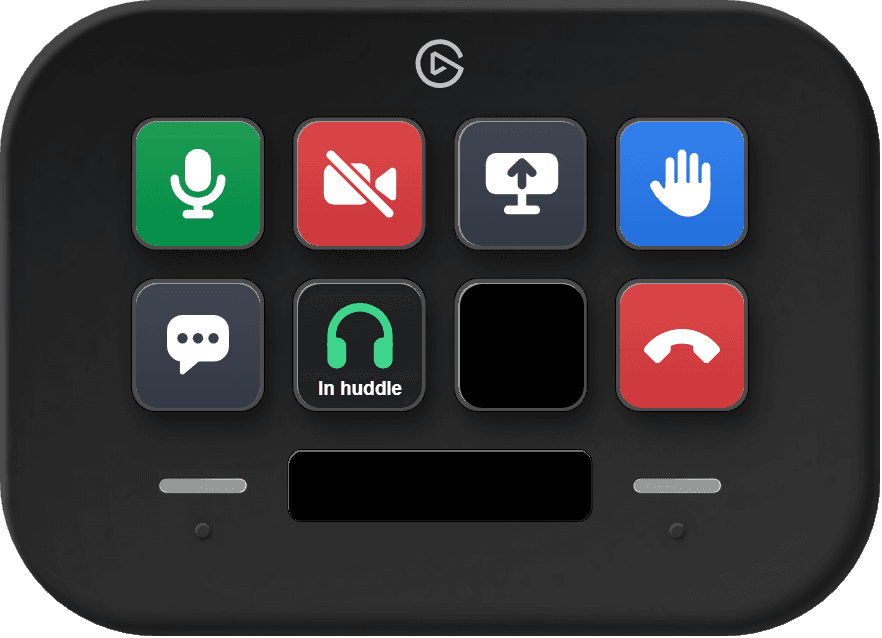
- Toggle Mute: mutes or unmutes your microphone. Green while the mic is live, red with a struck-through mic when Slack shows you as muted.
- Toggle Camera: turns your camera on or off. Green while it is on, red with a struck-through camera while it is off.
- Share Screen: opens Slack's screen picker. The key turns blue once you are sharing, and a press then stops it.
- Raise Hand: raises or lowers your hand. Blue while it is raised.
- Toggle Chat: opens or closes the huddle's thread. Blue while it is open.
- Start Huddle: shows the name of the conversation open in Slack and starts a huddle there. During a huddle it shows green headphones and the words In huddle.
- Leave Huddle: leaves the huddle with one press and no confirmation. Red while you are in a huddle.
Key colors
Keys change color on their own, depending on what Slack is doing.
- Near black: Slack is not running.
- Dark: Slack is running and no huddle is active. Start Huddle is purple and shows the conversation you have open.
- Green and red: mic and camera. Green is live, red is muted or off. Leave is red as well.
- Gray and blue: Share, Hand and Thread. Gray is off, blue is on.
- Gray on Mute or Camera: the plugin cannot read that state at the moment. The key still works.
Docked and detached huddles
The plugin works with the huddle docked in the Slack window and with the huddle in a window of its own, and finds it again when you switch between the two. There is nothing to set.
Windows and Mac
The keys look and behave the same on both systems. Three things differ.
| Difference | Windows | Mac |
|---|---|---|
| Permission | None. | Accessibility, for Elgato Stream Deck. |
| A key press | The huddle window comes to the front for an instant, then the app you were in has focus again. Start Huddle and Share Screen leave Slack in front, because you need its window next. | Slack stays in the background. |
| A change made in Slack | Reaches the key within about a quarter of a second. | Reaches the key within about a second. |
- Permission
- Windows: None.
- Mac: Accessibility, for Elgato Stream Deck.
- A key press
- Windows: The huddle window comes to the front for an instant, then the app you were in has focus again. Start Huddle and Share Screen leave Slack in front, because you need its window next.
- Mac: Slack stays in the background.
- A change made in Slack
- Windows: Reaches the key within about a quarter of a second.
- Mac: Reaches the key within about a second.
Setup
- 1Buy and install Arise Slack Huddle Control from the Elgato Marketplace.
- 2On macOS only: allow Elgato Stream Deck under System Settings → Privacy & Security → Accessibility. Windows needs no extra permission.
- 3Drag any of the seven actions onto Stream Deck keys. None of them needs a setting.
- 4Open Slack. The keys go from near black to dark, and Start Huddle shows the conversation you have open.
- 5Start or join a huddle. The keys light up: within about a second on Windows, after a few seconds on a Mac.
Requirements
- Windows 11, or macOS 15 or later
- Slack desktop app, set to English or German (Slack in a browser is not supported)
- Elgato Stream Deck hardware with keys
- Stream Deck software version 7.0 or later
Troubleshooting
Keys stay near black: Slack is not running, or has not finished starting.
Keys stay dark during a huddle on a Mac: the Accessibility permission is missing. Allow Elgato Stream Deck under System Settings → Privacy & Security → Accessibility.
Keys stay dark during a huddle although the permission is set: the plugin reads Slack's button labels in English and German. Set Slack to one of the two.
A key shows a yellow warning sign: the press could not reach Slack. Outside a huddle that is expected. In a huddle, press again; if it keeps happening, leave and rejoin the huddle.
Mute or Camera is gray during a huddle: the plugin cannot read that state at the moment. The key still works, and the color returns once Slack shows the control again.
On Windows the huddle window flickers when you press a key: Slack brings its huddle window forward whenever one of its controls is used. The plugin hands the focus back to the app you were in.
Start Huddle is dark: open a channel or a direct message in Slack. The key turns purple and shows its name.
The keys stopped following Slack after a Slack update: restart the Stream Deck app.
Smart Profile tip
Assign a Smart Profile in Stream Deck so your Slack Huddle keys appear automatically when Slack is in focus. Open Stream Deck Preferences, select your Slack Huddle profile, and set Slack as its linked application. The huddle keys also work while Slack is behind other windows, so use a Smart Profile only if you want them out of the way whenever Slack is not in front. Note that only the Slack desktop app is supported. Browser-based Slack does not work with this plugin.
- Smart Profiles activate only when the Stream Deck software is running as a background tray process. The configuration window does not need to be open.
- Combine with the Elgato Slack plugin to add channel and DM navigation alongside huddle controls on the same profile page.
Real product examples
Get the plugin
View pluginArise Slack Huddle Control on the Elgato Marketplace
A paid plugin, a one-time purchase on the Elgato Marketplace. No tokens, no Slack app, no sign-in: drag a huddle action onto a key and it is ready for your next huddle.
Browse products
Setup guide and troubleshooting for Arise Slack Huddle Control: the Stream Deck plugin that puts Slack huddle controls on keys, on Windows and Mac.