
How to set up Smart Profiles on Stream Deck
Smart Profiles let Stream Deck automatically switch to the right key layout when a linked app comes into focus, and switch back when you leave it. No manual page navigation required.
By Arise Create
- Auto-switches on app focus
- Works with any Stream Deck profile
- Combine with Teams and Slack plugins
What are Smart Profiles
A Smart Profile is a Stream Deck profile that automatically activates when a linked application comes into focus. As soon as you switch to that app (whether by clicking its taskbar icon, using Alt+Tab, or opening it fresh), Stream Deck switches to its linked profile. When you leave the app or switch to another window, Stream Deck restores the profile you had before.
No manual page navigation, no folder diving, no remembering which profile holds which keys. The right layout appears at exactly the moment it is useful.
How Smart Profiles work
The Stream Deck software runs in the Windows system tray and continuously monitors which window has foreground focus. When the focused window belongs to an application that is linked to a profile, Stream Deck switches to that profile immediately. When focus moves to an unlinked application, Stream Deck restores whichever profile was active before.
Each profile can be linked to exactly one application, and each application can only be linked to one profile. The connection is stored in the profile settings, not in the app itself.
App gains focus
You switch to a linked application.
Stream Deck detects it
The tray software watches which window is in front.
Profile switches
The linked layout appears on your keys.
Setting up a Smart Profile
The setup is done entirely inside Stream Deck software. You do not need to modify the target application or install anything extra.
- 1Open Stream Deck software and go to Preferences.
- 2Select the Profiles tab.
- 3Click the profile you want to link to an application.
- 4Make sure the target application is running, then pick it from the drop-down under the Application section. Browsing to the application's executable manually is only a fallback.
- 5Confirm your selection. The profile is now linked. Stream Deck will switch to it automatically whenever that app gains focus.
Important limitations
Smart Profiles work reliably once you understand a few hard constraints.
Stream Deck software must be running and minimized to the system tray, not just the main window open. If you quit Stream Deck software, automatic profile switching stops.
Elgato does not guarantee that Smart Profiles work with Store-packaged (UWP/MSIX) apps, and new Teams is only distributed as an MSIX package; there is no classic desktop installer anymore. Try selecting Teams from the Application drop-down while it is running; if switching stays unreliable, trigger the profile manually or via a key.
Only one profile can be linked per application. If you want multiple layouts for the same app, use pages within a single profile rather than separate profiles.
Browsers (chrome.exe, firefox.exe) trigger the profile for every browser window, not a specific website or tab. Linking a profile to chrome.exe means it activates for all Chrome windows without distinction.
Use with Arise plugins
Smart Profiles become significantly more useful when combined with plugins designed around specific apps. Two Arise plugins make this combination especially practical.
Link your Arise Teams Controller profile to Microsoft Teams by picking it from the Application drop-down while Teams is running. As a Store-packaged app, automatic switching for new Teams is not guaranteed (see the limitations above). Once linked, your mute, camera, leave-meeting, and hand-raise keys appear the moment Teams comes into focus, and disappear when you switch away. No dedicated hardware panel required.
The same pattern applies to Arise Slack Huddle Control. Link its profile to the Slack executable. Huddle mute, video, and leave controls are available on your deck whenever Slack is focused, and your default layout returns when you move to another app.
ChromeShift can also be linked to chrome.exe if you want a dedicated browser navigation profile. Keep in mind the browser limitation above: the profile activates for all Chrome windows, not just specific sites.
Troubleshooting
If automatic switching is not working as expected, check these common causes before reinstalling or reconfiguring.
Profile does not switch: Confirm Stream Deck software is running in the system tray. The software must be active in the background, not just the hardware plugged in.
Profile switches but immediately reverts: Another application in focus may be linked to a different profile. Check whether any other running apps have linked profiles that are overriding the one you expect.
Profile activates but quickly flickers back: Verify that the same executable is not linked to more than one profile. Stream Deck will behave unpredictably if two profiles compete for the same app.
Teams profile does not switch: New Teams is a Store-packaged (MSIX) app, and Elgato does not guarantee Smart Profiles work with those. Select Teams from the Application drop-down while it is running; if switching stays unreliable, switch to the profile manually or assign it to a key.
Real product examples
Video walkthrough
Watch video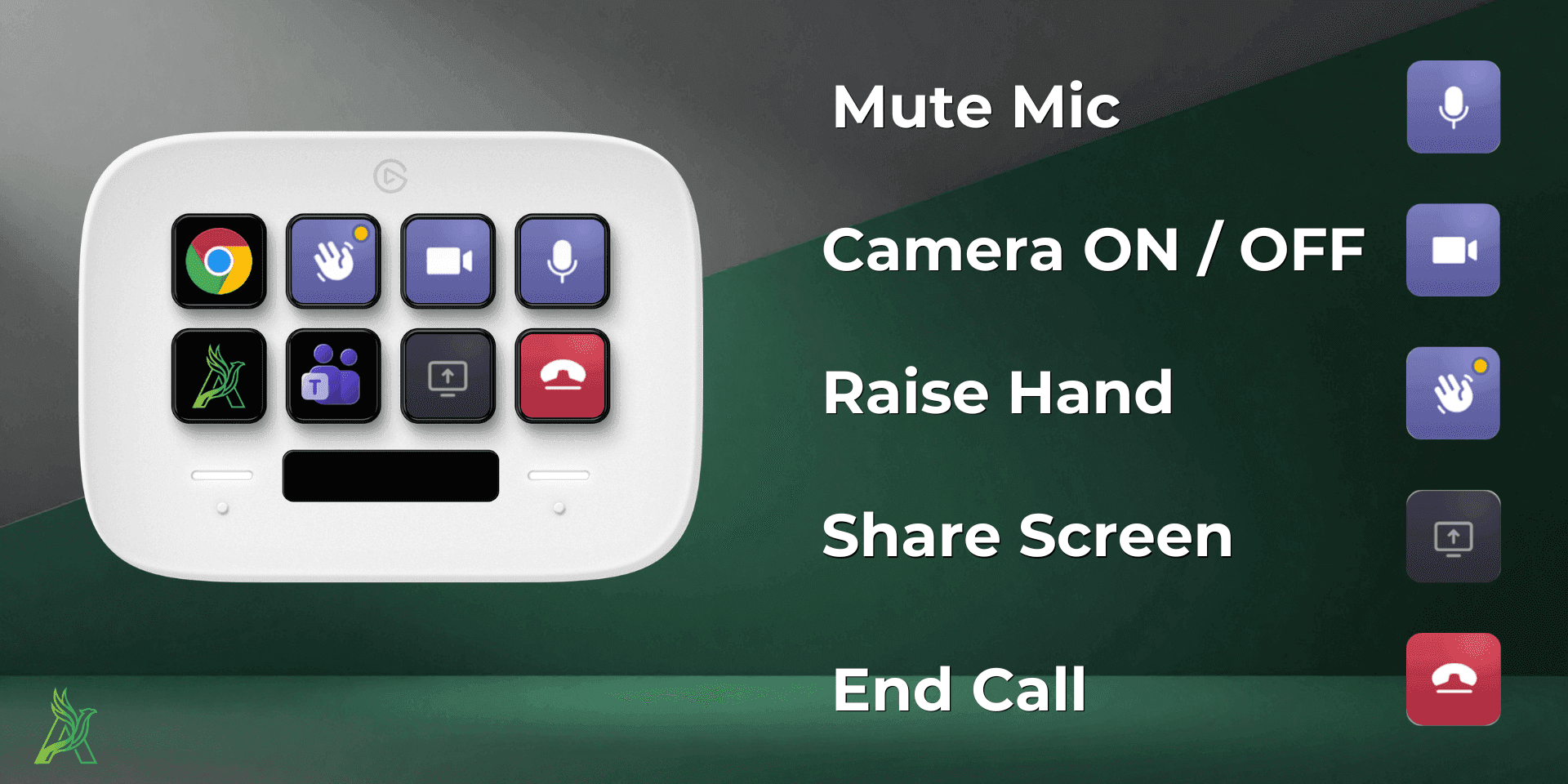
Watch the Smart Profiles setup on video.
The YouTube video 'How to setup a smart Stream Deck with Smart Profiles' walks through the exact setup this article describes: linking a profile to an application so the deck follows your context automatically.
How to use it with this guide
See the full setup once. Linking a profile to an app takes under two minutes on screen.
Repeat the steps from the setup section below with your own profile and application.
Use the limitations and troubleshooting sections if switching doesn't behave as expected.
Workplace upgrade
View plugin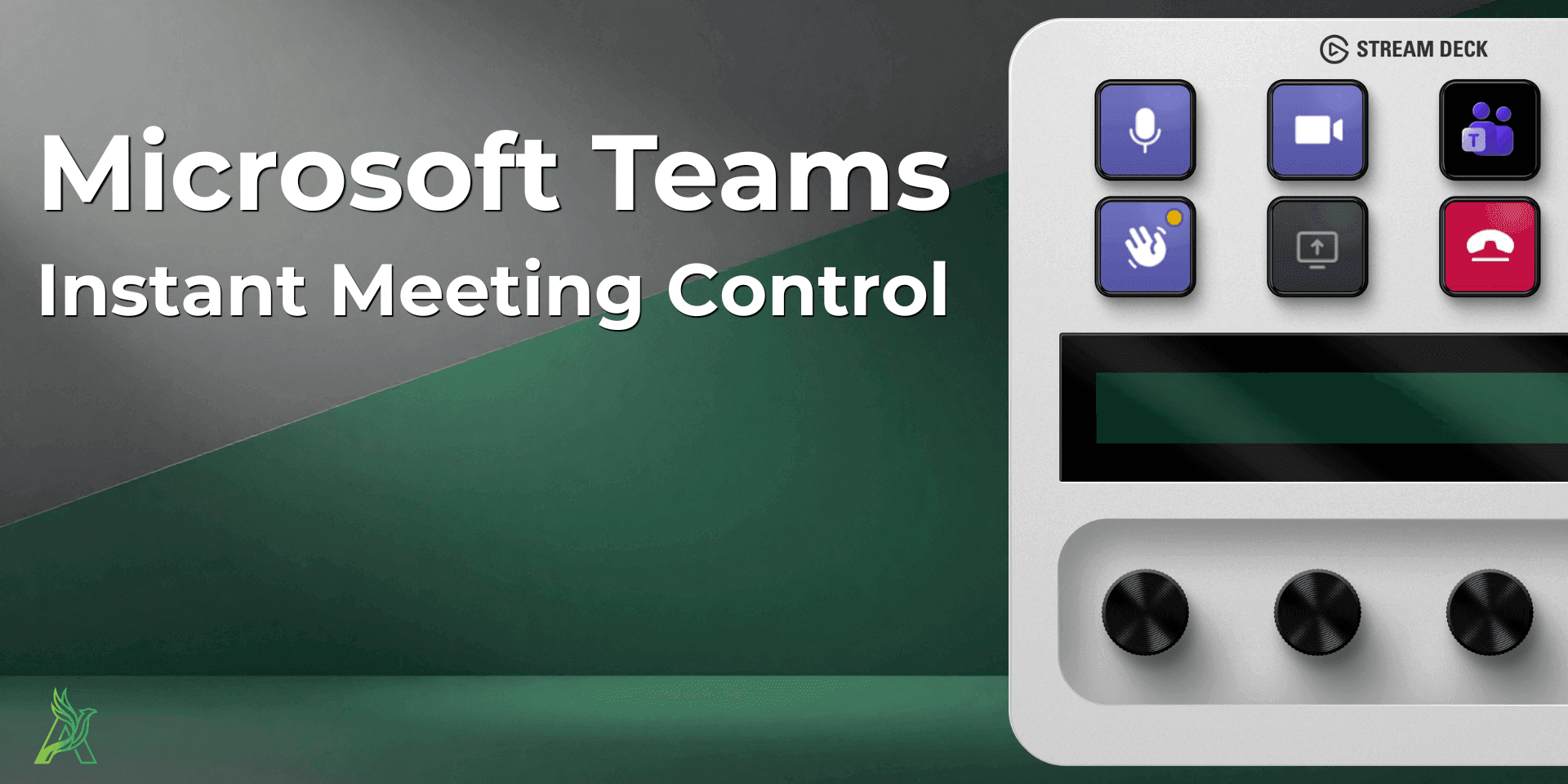
Arise Teams Controller
Put Microsoft Teams meeting controls on a dedicated Smart Profile: mute, camera, raise hand, share, and leave land on physical keys the moment Teams comes into focus.
Workplace upgrade
View plugin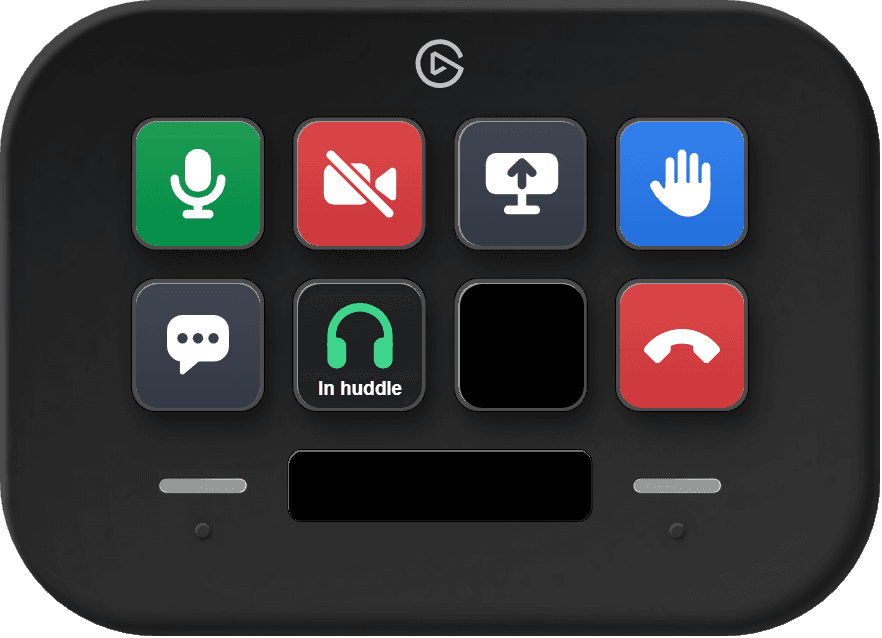
Arise Slack Huddle Control
Pair a Slack Smart Profile with Arise Slack Huddle Control: seven huddle keys appear automatically when Slack comes into focus, and disappear when you switch away.
Browse products
Set up Stream Deck Smart Profiles: link a profile to an app and your keys switch automatically. With video walkthrough, limitations, and troubleshooting.