
Using Stream Deck With Microsoft Teams
Microsoft's own Teams plugin for Stream Deck left the Elgato Marketplace in December 2025, and Microsoft retired the local interface it relied on, effective June 30, 2026. This article explains what that means, how plugins fill the gap, and how to get mute, camera, raise hand, share, and leave back on hardware keys with nothing to switch on in Teams.
By Arise Create
- Why native Teams integration was removed
- How shortcut injection fills the gap
- Live key state behavior
Why Teams controls disappeared from Stream Deck
Microsoft Teams offered a local third-party app API that let tools like Microsoft's own Teams plugin for Stream Deck control meetings directly. When Microsoft rebuilt Teams as 'New Teams', that API was missing at first, but it returned in late 2023, and the plugin kept working.
Then Microsoft announced the retirement of these legacy third-party meeting and call control APIs. Microsoft's Teams plugin left the Elgato Marketplace in December 2025, and Microsoft retired the API effective June 30, 2026 (Message Center MC1266901), with no replacement announced. That is why keyboard-shortcut-based control is now the reliable path.
How plugins restore the controls
The approach that works with the new Teams desktop client is simpler than the old API: keyboard shortcut injection. The plugin listens for a key press, then fires the native Teams keyboard shortcut directly into the Teams process: Ctrl + Shift + M for mute, Ctrl + Shift + O for camera, and so on.
This works without an API, without a browser extension, and without any Teams account or token. The plugin communicates with Teams the same way a keyboard does.
The shortcuts below are the Windows ones. On macOS, Arise Teams Controller presses the same Teams controls through the system accessibility interface instead, which needs a one-time Accessibility permission for Elgato Stream Deck.
- Toggle Mute (Ctrl + Shift + M): the key reads the mute button in Teams and follows it, including when you mute with the mouse.
- Toggle Camera (Ctrl + Shift + O): fires correctly; key shows best-effort state.
- Raise / Lower Hand (Ctrl + Shift + K): works in meetings; key shows best-effort state.
- Share Screen (Ctrl + Shift + E): opens the share picker in Teams, where you choose a screen or window; sharing does not start until you choose.
- Leave Meeting (Ctrl + Shift + H): leaves or ends the meeting.
What 'best-effort' key state means
Mute, camera and hand state are read from the buttons in Teams, with Teams set to English or German. When the plugin cannot read a button, the mute and camera keys look as if your mic is live and your camera is on, and only follow your own key presses.
That does not mean the action is broken. Presses still work. Check Teams itself for the real state in that case.
Setup
No Microsoft sign-in, no tokens, no configuration files.
- Open the Elgato Marketplace inside Stream Deck or in your browser and install Arise Teams Controller.
- On macOS only: allow Elgato Stream Deck under System Settings → Privacy & Security → Accessibility, then restart Stream Deck. Windows needs no extra permission.
- Drag any of the six actions onto keys in your layout.
- Open Microsoft Teams. Keys show an amber idle state while no meeting is active.
- Join or start a meeting. The five meeting keys go live, on Windows a few seconds after you join.
Smart Profile tip
Stream Deck can switch profiles automatically when Teams is in focus. Set a Smart Profile for your Teams layout in Stream Deck Preferences and link it to the Microsoft Teams application. The meeting controls appear when Teams is active and your previous layout returns when you switch to any other app.
Requirements
- Windows 11, or macOS 15 or later
- On macOS: Accessibility permission for Elgato Stream Deck
- Microsoft Teams (new Teams desktop client)
- Elgato Stream Deck hardware
- Stream Deck software version 7.0 or later
Real product examples
Teams plugin
View plugin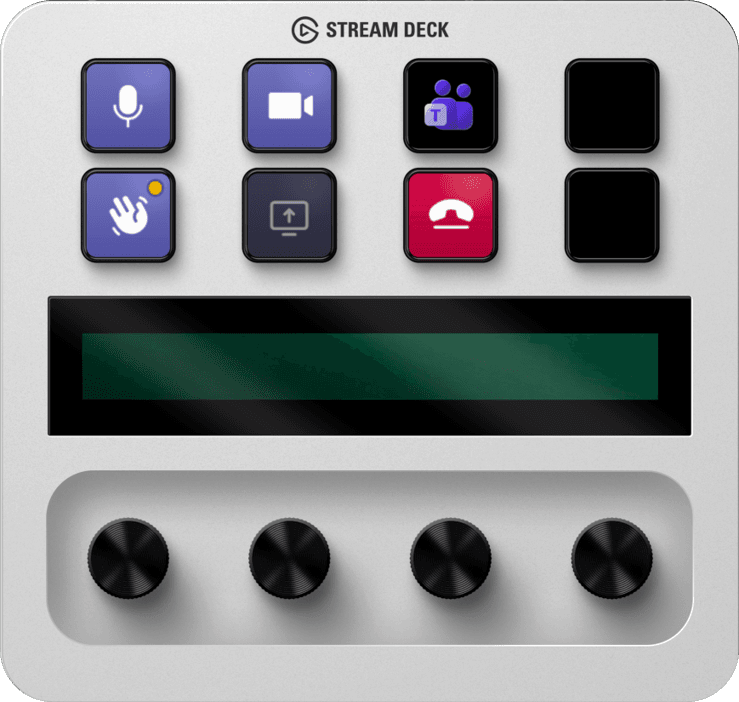
Arise Teams Controller puts five meeting controls and a Start Call key on your Stream Deck.
One plugin, no tokens, no cloud dependency. Drag any of the six actions onto a key and Teams meeting controls are back on hardware. Paid, one-time purchase on the Elgato Marketplace.
Getting started
Find Arise Teams Controller on the Elgato Marketplace and install it.
Drop mute, camera, or any action onto a Stream Deck key.
Join a Teams meeting. On Windows the keys go live a few seconds later.
Related reading
Arise Teams ControllerArise Teams Controller restores meeting controls to your Stream Deck with no tokens and nothing to switch on in Teams. It is a paid plugin, a one-time purchase on the Elgato Marketplace. The mute, camera and hand keys follow what the buttons in Teams report. Keys are gray while Teams is not running and amber while no meeting is running. Earlier pages on this website called this plugin Arise Controller for Teams.
Browse products
How to put Microsoft Teams mute, camera, and hand-raise on Stream Deck keys, including why native controls disappeared and how plugins restore them.