
Arise Teams Controller
Arise Teams Controller restores meeting controls to your Stream Deck with no tokens and nothing to switch on in Teams. It is a paid plugin, a one-time purchase on the Elgato Marketplace. The mute, camera and hand keys follow what the buttons in Teams report. Keys are gray while Teams is not running and amber while no meeting is running. Earlier pages on this website called this plugin Arise Controller for Teams.
By Arise Create
- Six actions
- Mute state read from Teams
- Works with the new Teams desktop client
What it does
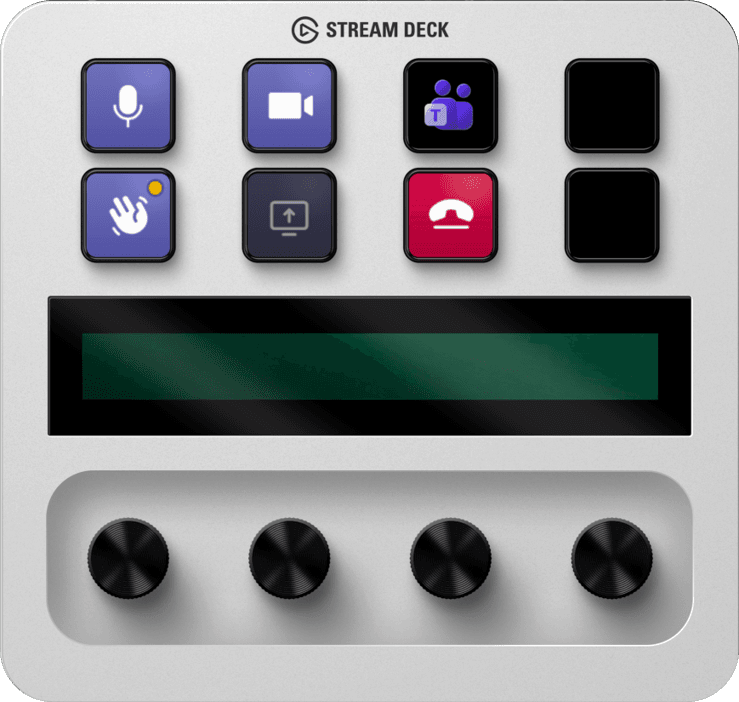
Arise Teams Controller puts mute, camera, raise hand, share screen, and leave meeting back on your Elgato Stream Deck hardware. Microsoft's own Teams plugin for Stream Deck left the Elgato Marketplace in December 2025, and Microsoft retired the local interface it relied on, effective June 30, 2026. This plugin does not use that interface and needs no Teams API token, no browser extension and no cloud service.
The plugin runs entirely on your machine, on Windows and macOS, using local system signals. On Windows it sends the native Teams keyboard shortcuts when you press a key and reads mute, camera and hand state from the buttons in the Teams meeting window via Windows UI Automation. On macOS it presses the real Teams controls through the system accessibility interface and reads their state the same way.
Actions
The plugin provides six actions: five meeting controls plus Start Call. Drag any one of them onto a key in the Stream Deck app to add it.
- Toggle Mute: fires Ctrl + Shift + M in Teams. The key reads the mute button in Teams and goes dark with a struck-through mic when Teams reports you muted.
- Toggle Camera: fires Ctrl + Shift + O. The key is purple while the camera is on and dark with a struck-through camera when Teams reports it off.
- Raise / Lower Hand: fires Ctrl + Shift + K. A raised hand shows a filled hand with a yellow dot.
- Share Screen: opens the share picker in Teams, where you choose a screen or window. On Windows the key is a plain trigger and shows no sharing state. On macOS it lights up while you share.
- Leave Meeting: fires Ctrl + Shift + H. The key is red while you are in a meeting.
- Start Call: one key per person. Enter a contact's email address and the key opens a Teams call link. Audio by default, video if you select Start with video.
Key state behavior
Keys change their appearance automatically depending on what Teams is doing.
- Gray / offline: Teams is not running, or the plugin has not detected it yet. Start Teams and the keys will update within a few seconds.
- Amber / idle: Teams is running but no meeting is active. Join or start a meeting and the keys will activate.
- In a meeting: purple means mic live, camera on or hand raised. Dark means muted, camera off or hand down. Leave is red.
- State cannot be read: the mute and camera keys look as if your mic is live and your camera is on, and only follow your own key presses. This happens when Teams runs in a language other than English or German.
Setup
No Microsoft sign-in, no tokens, no configuration files. Buy the plugin on the Elgato Marketplace, install it, drag the actions onto keys.
- 1Open the Elgato Marketplace inside the Stream Deck app or from a browser and install Arise Teams Controller.
- 2On macOS only: allow Elgato Stream Deck under System Settings → Privacy & Security → Accessibility, then restart Stream Deck. Windows needs no extra permission.
- 3Drag any of the six actions from the action list onto a key. Start Call needs a contact's email address.
- 4Open Microsoft Teams. Keys show an amber idle state while no meeting is active.
- 5Join or start a meeting. On Windows the keys go live a few seconds after you join.
Requirements
- Windows 11, or macOS 15 or later
- On macOS: Accessibility permission for Elgato Stream Deck
- Microsoft Teams (new Teams desktop client)
- An Elgato Stream Deck with keys
- Stream Deck software version 7.0 or later
Troubleshooting
| You see | It means | Do this |
|---|---|---|
| The keys are gray even though you are in a meeting. | The plugin cannot find Teams. It looks for the Microsoft Teams desktop app (new Teams) and, on Windows, for Teams installed as an app from Chrome. On a company PC, restricted PowerShell can be the cause. | Check that the desktop app is running, not Teams in a browser tab. |
| The keys stay amber even though you are in a meeting. | On Windows the plugin confirms the meeting before the keys go live. A meeting in a browser tab is not detected. | Give it a few seconds after you join. |
| Only the hand key is amber. | The plugin finds no raise-hand control in this call. On a Mac the same happens while the Accessibility permission is missing. | On a Mac, check the permission first. Otherwise there is nothing to fix. |
| The mute or camera key is purple even though you are muted or your camera is off. | The plugin cannot read the buttons in Teams, so the key only follows your own presses. | Set Teams to English or German. On a Mac, check the Accessibility permission. |
- The keys are gray even though you are in a meeting.
- It means: The plugin cannot find Teams. It looks for the Microsoft Teams desktop app (new Teams) and, on Windows, for Teams installed as an app from Chrome. On a company PC, restricted PowerShell can be the cause.
- Do this: Check that the desktop app is running, not Teams in a browser tab.
- The keys stay amber even though you are in a meeting.
- It means: On Windows the plugin confirms the meeting before the keys go live. A meeting in a browser tab is not detected.
- Do this: Give it a few seconds after you join.
- Only the hand key is amber.
- It means: The plugin finds no raise-hand control in this call. On a Mac the same happens while the Accessibility permission is missing.
- Do this: On a Mac, check the permission first. Otherwise there is nothing to fix.
- The mute or camera key is purple even though you are muted or your camera is off.
- It means: The plugin cannot read the buttons in Teams, so the key only follows your own presses.
- Do this: Set Teams to English or German. On a Mac, check the Accessibility permission.
Keys activate but pressing them does nothing: Ensure the Teams window is not minimized. The plugin directs key presses into the Teams process, so Teams must be present and visible.
Plugin stopped working after a Teams update: Restart the Stream Deck application. Teams updates occasionally change process identifiers, and a restart lets the plugin rediscover Teams.
Words on a key
A key that cannot act says why for a moment: in English, on an amber or red face.
| On the key | It means | Do this |
|---|---|---|
| STARTING | The plugin just started. The keys are amber until it has a reading. | Wait a moment. |
| TEAMS OFFLINE | Teams is not running. | Start the Teams desktop app. |
| NO MEETING | No meeting is running. | Join a meeting. |
| NOT AVAILABLE | The plugin finds no raise-hand control in this call. | On a Mac, check the Accessibility permission. Otherwise there is nothing to fix. |
| ACTION FAILED | The press did not go through in Teams. | Press again. On a Mac, check the Accessibility permission and restart Stream Deck. |
| SET CONTACT | Start Call has no valid email address. | Enter one address in the key's settings. |
| CALL FAILED | The call link could not be opened. | Press again. If it keeps failing, write to us. |
- STARTING
- It means: The plugin just started. The keys are amber until it has a reading.
- Do this: Wait a moment.
- TEAMS OFFLINE
- It means: Teams is not running.
- Do this: Start the Teams desktop app.
- NO MEETING
- It means: No meeting is running.
- Do this: Join a meeting.
- NOT AVAILABLE
- It means: The plugin finds no raise-hand control in this call.
- Do this: On a Mac, check the Accessibility permission. Otherwise there is nothing to fix.
- ACTION FAILED
- It means: The press did not go through in Teams.
- Do this: Press again. On a Mac, check the Accessibility permission and restart Stream Deck.
- SET CONTACT
- It means: Start Call has no valid email address.
- Do this: Enter one address in the key's settings.
- CALL FAILED
- It means: The call link could not be opened.
- Do this: Press again. If it keeps failing, write to us.
Smart Profile tip
Assign a Smart Profile in Stream Deck so your Arise Teams Controller keys appear automatically whenever Teams is in focus, and switch away when you move to another app. Open Stream Deck Preferences, select your Arise Teams Controller profile, and set Microsoft Teams as its linked application.
- Smart Profiles activate only when the Stream Deck software is running as a background tray process. The Stream Deck configuration window does not need to be open, but the software must be running in the system tray.
- Smart Profiles may not work with Store-packaged (UWP/MSIX) apps, and new Teams is only distributed as an MSIX package. If the automatic switch does not trigger, select Teams from the Application drop-down in Stream Deck Preferences while Teams is running.
- Combine with a channel navigation plugin to get full Teams control from a single Smart Profile page.
Related reading
Using Stream Deck With Microsoft TeamsMicrosoft's own Teams plugin for Stream Deck left the Elgato Marketplace in December 2025, and Microsoft retired the local interface it relied on, effective June 30, 2026. This article explains what that means, how plugins fill the gap, and how to get mute, camera, raise hand, share, and leave back on hardware keys with nothing to switch on in Teams.
Browse products
Setup guide and troubleshooting for Arise Teams Controller: the Stream Deck plugin that puts Microsoft Teams meeting controls back on your hardware.