Stream Deck for home office: the essential setup
Put repeated remote-work actions on dedicated keys: mute, camera, browser profile switching, dictation and AI prompts. Learn which integrations fit your setup and where app focus or availability still matters.
By Arise Create
- Meeting controls without hunting
- Practical product examples
- Layout building advice
Why Stream Deck fits remote work
Remote work compresses your entire toolstack onto one screen. Microsoft Teams, Slack, Chrome, Notion, email: all competing for the same monitor, the same Alt-Tab queue, the same keyboard shortcuts. Every time you need to mute, switch a browser profile, or fire off a quick message, you interrupt what you were doing to hunt through overlapping windows.
Stream Deck adds a physical layer: dedicated keys for repeated actions. Switch browser profiles without navigating menus or trigger dictation from a key. Meeting behavior depends on the integration: for example, Arise Teams Controller on Windows usually brings Teams to the front briefly. Choose actions that fit the way you work rather than assuming every plugin controls its app in the background.
Meeting controls
The single biggest home office use case is meeting control. In the middle of a Teams or Slack call you are also trying to reference a document, write a note, or respond to a message, and the meeting UI is buried under five other windows. Arise Teams Controller maps mute, camera toggle, hand raise, screen share, and leave to dedicated Stream Deck keys. Arise Slack Huddle Control does the same for Slack Huddles.
- Dedicated mute key: tap once to toggle. Supported integrations show mic state on the key; check the actual app if its state cannot be read.
- Camera and hand-raise on separate keys: keep meeting actions easy to find, while allowing for each plugin's app-focus behavior.
- Leave meeting in one press: no more hunting for the red button at the wrong moment.
Browser profile switching
Many remote workers run a work Chrome profile alongside a personal one: separate cookies, logins, and saved sessions. Switching manually means opening the profile menu, clicking the right entry, and waiting for the target window to come forward. ChromeShift maps each Chrome profile to a single key. One press opens the right profile with the right cookies and saved logins already active. PWA support extends this further: apps like Google Workspace, Notion, or your company intranet can open as standalone windows directly from a key.
- Profile-specific keys mean the right logins are always one press away, no manual profile picker required.
- PWA shortcuts open tools like Google Docs or Notion as clean standalone windows, separate from your regular browser tabs.
Voice-to-text for faster input
Speech to Text turns any Stream Deck key into a dictation button. Tap to record, tap to stop. Your words land in whatever window had focus. Transcription runs locally using Whisper, so audio never leaves the machine. This is useful for Slack messages, meeting notes, and email replies where typing feels slow but switching to a separate app would break your context. The key can also show a live indicator while recording so there is no ambiguity about whether the mic is active.
- On-device transcription: audio is processed locally with Whisper, no cloud upload, no subscription required.
- Tap to record, tap to stop: transcribed text lands directly in your active window, whether that is Teams, Slack, Notion, or your email client.
AI prompt shortcuts
Project Management Prompts packages seven ready-to-use AI prompt templates built for project managers. Action Matrix, Blocker Hunter, Exec Brief, CYA Recap, and more. Press a key and the prompt lands in any open AI chat window. This removes the repetition of typing or copying the same prompts every week. It is equally useful outside meetings, for turning rough session notes into structured weekly reports or preparing a context brief before a stakeholder call.
- Seven templates cover action tracking, blocker hunting, exec briefs, and stakeholder recaps, common recurring PM tasks.
- Keys work with any chat window: ChatGPT, Copilot, Claude, or any AI interface that accepts text input.
Context capture
Arise Flashback is listed as coming soon and its product page is offline during a rebuild. It is intended for retrospective context capture, but there is no public release or setup guide available. For your current home-office layout, use tools you already have for notes and recordings rather than depending on this planned product.
Building your home office layout
Start with four or five keys, only the actions you reach for daily. An empty key does less harm than a cluttered layout you stop trusting. Once the core keys feel automatic, adding one or two more is fast. Smart Profiles make the device context-aware, automatically swapping layouts when you switch from a Teams call to a code editor to a document.
- Start sparse: pick your top-five actions and leave the rest empty. You can always add more.
- Use Smart Profiles to auto-switch layouts when your active app changes, no manual profile switching required.
Real product examples
Definitive workplace upgrade
View plugin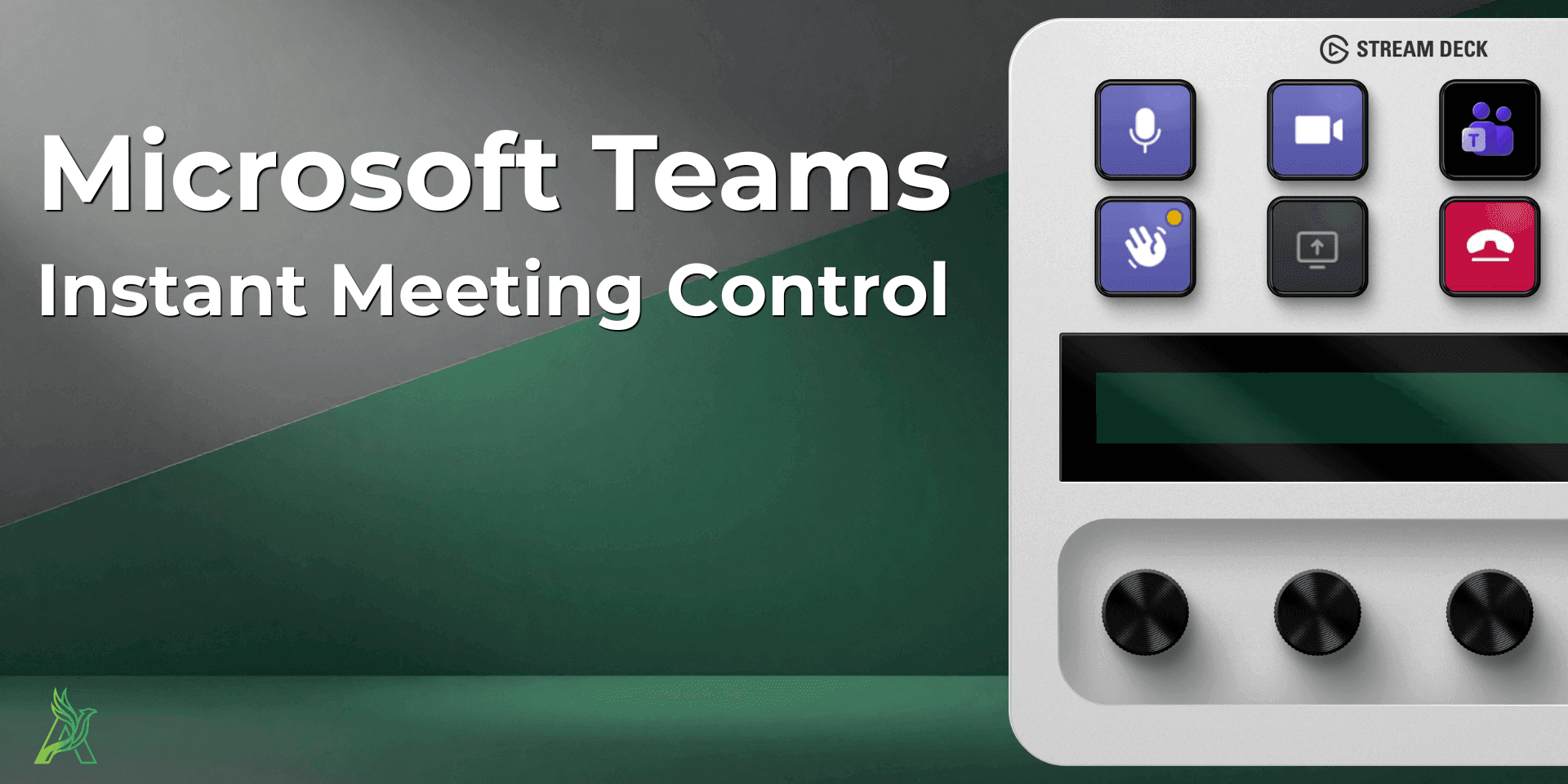
Arise Teams Controller
The most impactful single addition to a home office Stream Deck layout: physical mute, camera, hand raise, share, and leave keys that stay aligned to real Microsoft Teams call state.
Definitive workplace upgrade
View plugin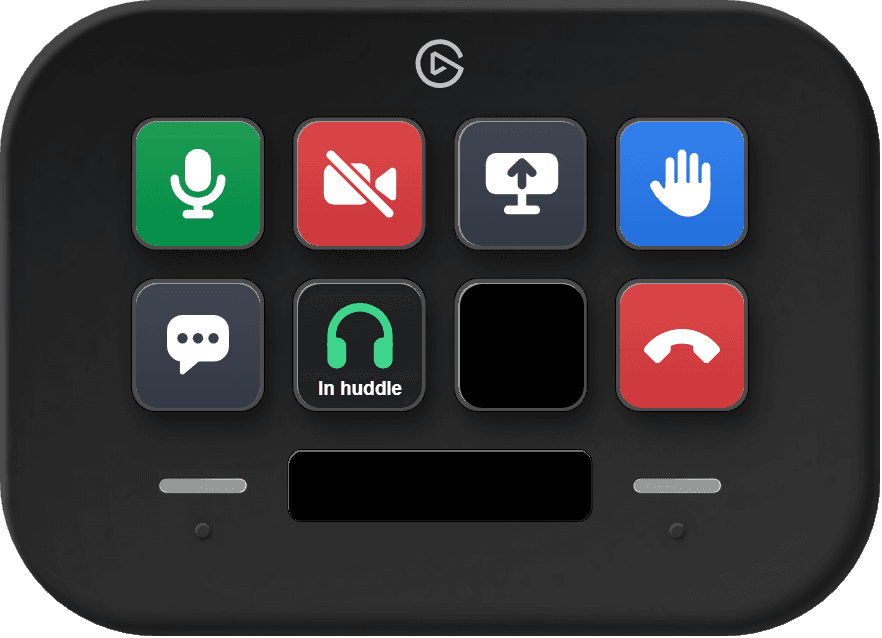
Arise Slack Huddle Control
Seven huddle keys that show their state: see at a glance whether Slack is running, whether a huddle is active and whether your mic is live. Mute and leave a Slack huddle without touching the mouse.
Browse products
Set up Stream Deck for home office work: meeting controls, browser switching, voice-to-text and AI prompts, with practical examples and integration limits.